
Do I Click

See every click.

A free Mac menu bar app that puts a small mark where the mouse is clicked, so recordings and demos show each click.

For macOS 13 or later, on Apple silicon and Intel. MIT license.

0 clicks

Click anywhere on this page.
Left is red, right is green.
With the keyboard: Enter, or Shift+Enter for right.

Take screenshots and record your screen.

Point at a window or a screen. Tap ⌘ twice, then press one letter within a second. The letter does not reach the app in front.

T

Record the window

Start with ⌘ ⌘ T. Stop with ⌘ ⌘ T or ⌘ ⌘ A. A red dot in the menu bar shows it is recording.

A .mov file on the Desktop
A

Record the whole screen

The screen under the pointer. Start with ⌘ ⌘ A. Stop with ⌘ ⌘ A or ⌘ ⌘ T.

A .mov file on the Desktop
C

Picture of the window

No shadow. A white flash and a shutter sound confirm it.

A .png on the Desktop and in the clipboard
S

Picture of the whole screen

The display the pointer is on.

A .png on the Desktop and in the clipboard

A mark at every click, and a sound if you want.

  • White center, translucent red edge for a left click; green for a right click.
  • Shown at full size for 0.15 s by default, then gone. No growing, no fade.
  • Size, duration, and both colors are adjustable.
  • Optional click sound: Tac (default), mouse clicks, a typewriter, or Tink.
  • Recordings include the pointer and the marks. No audio is recorded.
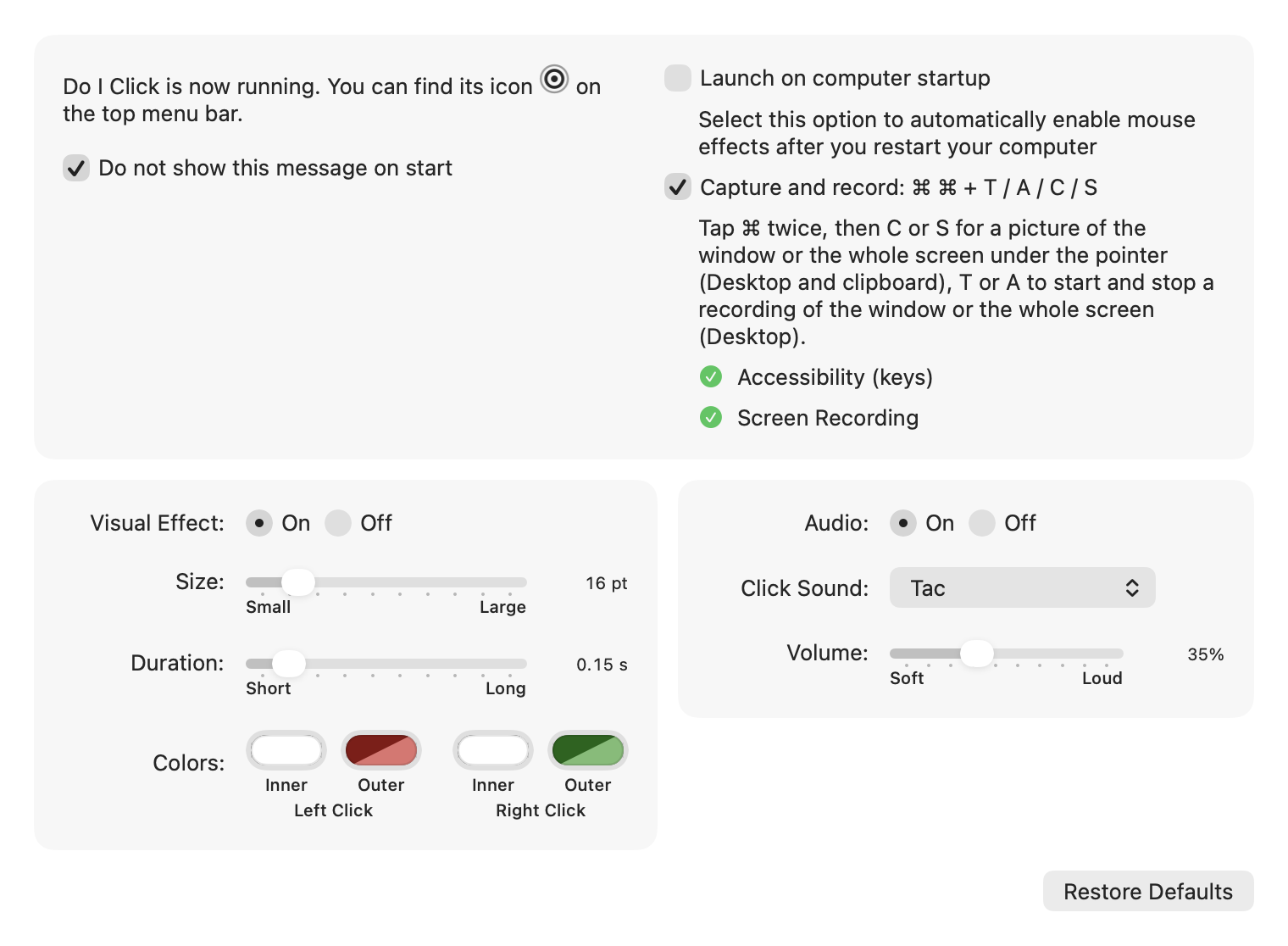
Do I Click preferences: visual effect, size and duration sliders, colors, click sound, and the Capture and record option
Preferences, opened from the menu bar icon with Settings.

Install in three steps.

  1. Download and unzipGet Do-I-Click-1.2.0.zip and unzip it.
  2. Move to ApplicationsDrag Do I Click.app into the Applications folder.
  3. Open it onceAfter moving the app, try opening it once. The app is not notarized by Apple. If macOS blocks it, open System Settings, then Privacy & Security, and click Open Anyway. Click Open in the warning. After that it opens normally. Apple’s steps.

Updating from an older copy with the app ID be.codegg.doiclick: quit the old app from its menu bar icon (or Force Quit it) first, then replace it. macOS treats the new copy as a new app, so allow the permissions again. Old settings are not carried over.

For the shortcuts, turn on Capture and record in Preferences and allow Accessibility and Screen Recording. The guide shows each step.